
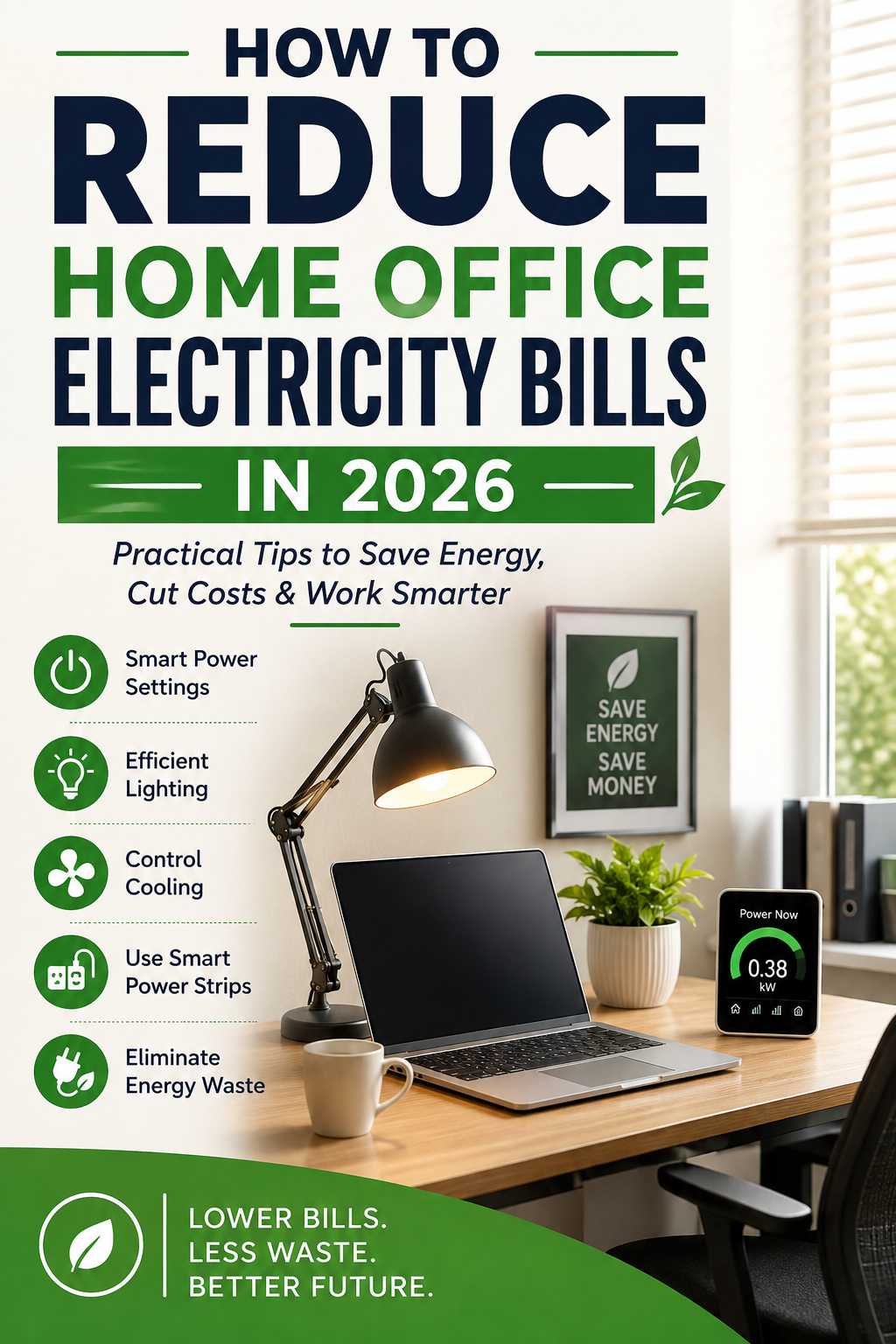
Working from home gives you more control over your schedule, but it can also shift part of your household energy use into a full working day. A desktop PC, monitor, desk lamp, Wi-Fi equipment, printer, chargers, fans, and air conditioning can all be running for hours at a time.
The good news is that cutting home office electricity costs does not usually require expensive upgrades. The biggest gains often come from changing a few everyday habits, adjusting power settings, improving lighting, and managing heating or cooling more efficiently.
The key is to focus on what runs for the longest and what uses the most power. Once those areas are under control, smaller improvements become worthwhile too.
Find Out What Is Driving Your Home Office Electricity Use
Before changing your setup, identify where the electricity is actually going. It is easy to blame your computer when room cooling or lighting may be responsible for a much larger share of the cost.
Start with the equipment that operates for several hours each day. Your computer, monitor, air conditioner, heater, fan, and lighting are usually more important than occasional-use accessories.
A simple energy calculation can help:
Power consumption = watts × hours of use ÷ 1,000
This gives you the approximate kilowatt-hours (kWh) used by a device. Multiply that figure by your electricity rate to estimate the cost.
For example, a 100-watt device used for eight hours consumes about 0.8 kWh. That may not sound significant for one day, but repeated over a working month, it becomes much easier to see how everyday usage adds up.
If you are unsure which devices matter most, a plug-in energy meter can provide a more realistic picture than the wattage printed on the equipment.
Enable Sleep Mode and Automatic Power Management
One of the easiest ways to lower home office energy use is to stop your computer and monitor from running at full power when nobody is using them.
Modern laptops and desktop operating systems include automatic sleep and display-off settings. These features reduce power consumption during periods of inactivity without requiring you to shut everything down manually.
Set the display to turn off after a reasonable period and configure the computer to enter sleep mode shortly afterward. This is especially useful when you step away for meetings, lunch, or household tasks.
A common mistake is disabling sleep mode because it feels inconvenient. In practice, a few seconds of wake-up time is usually a much better trade-off than leaving a computer and monitor fully active for hours.
Shut Down Your Office Equipment at the End of the Day
Sleep mode works well during short breaks, but it does not replace a proper end-of-day shutdown.
When your work is finished, shut down the computer and switch off monitors and other equipment that does not need to remain powered. This is particularly helpful if you use a desktop PC with a powerful processor, dedicated graphics, multiple displays, or other high-performance hardware.
There is little benefit in keeping an office PC running overnight simply because you might use it again the next morning.
Creating a consistent shutdown routine also prevents forgotten equipment from becoming an invisible daily expense.
Reduce Monitor Power Use Without Sacrificing Comfort
Your monitor may remain powered for most of the workday, even when you are not actively looking at it. That makes display management an easy place to save energy.
Automatic screen-off settings should be your first step. Brightness can also be reduced to a comfortable level, especially in a naturally lit room.
Avoid using a screen saver as an energy-saving strategy. A screen saver changes what appears on the display, but it does not provide the same reduction in power use as turning the display off or allowing it to enter its low-power state.
If you use two or more monitors, consider whether every screen needs to stay active all day. Your second display may be useful for research or spreadsheets but unnecessary during a video call or focused writing session.
Use Your Laptop’s Efficiency Features
Laptops are often well suited to energy-conscious home offices because they are built around battery operation. That does not mean every laptop is automatically inexpensive to run, particularly when connected to several external monitors or used for demanding workloads.
Check your operating system’s power settings and use a balanced or efficient mode for normal office tasks. Higher-performance modes can be reserved for situations where you genuinely need extra processing power.
Battery and charging settings can also help. Once the laptop is fully charged, you do not need to keep every unnecessary accessory powered simply because the charger is connected.
There is also an important financial point here: replacing a perfectly good computer just to save electricity is not always worthwhile. An upgrade makes more sense when the existing machine is aging, inefficient, unreliable, or no longer capable of handling your workload.
Replace Inefficient Office Lighting With LEDs
Lighting is often easier to improve than people expect.
If your home office still uses older incandescent bulbs, replacing them with LEDs can reduce the electricity required to produce the same amount of useful light. LEDs are particularly sensible for a workspace because desk lamps and room lighting may operate for many hours each day.
Try to light the area where you actually work instead of making the entire room brighter than necessary. A well-positioned task lamp can provide focused illumination while allowing you to use less overhead lighting.
Natural daylight can help even more. Position your desk so you can benefit from window light without creating glare on your monitor.
Control Air Conditioning and Heating More Carefully
For many home offices, climate control is the biggest electricity expense by far.
A computer may consume a few hundred watts under load, while an air conditioner can draw considerably more power. That is why reducing cooling or heating waste can have a greater effect than switching off small accessories.
Avoid setting the thermostat dramatically colder or warmer than necessary. A moderate temperature with appropriate airflow is usually more efficient than constantly forcing the system to work harder.
Use a schedule that matches your working hours. There is no reason to condition an empty office at the same level throughout the evening unless another part of the home depends on the same system.
If the room gets hot because of direct afternoon sunlight, close blinds or curtains during the hottest part of the day. This reduces solar heat gain and can make the cooling system’s job easier.
Use Fans to Improve Comfort Efficiently
A desk fan or ceiling fan can sometimes reduce the need for aggressive cooling.
Fans do not actually lower the room temperature in the same way as air conditioning. Instead, moving air can make you feel cooler by improving evaporation and airflow around your body.
That means a fan can be useful alongside a moderate thermostat setting. However, it only makes sense to run it when you are in the room and benefiting from it.
Leaving a fan operating in an empty office simply adds another electrical load without providing any comfort benefit.
Manage Chargers, Printers, and Other Accessories
Small office devices are easy to ignore because each one uses relatively little electricity. The problem appears when several remain connected and powered for long periods.
Printers, scanners, speakers, USB hubs, charging stations, webcams, and external drives should not necessarily remain active all day.
Check whether your printer and other equipment have sleep or automatic standby features. These settings let the device reduce power consumption when it is not being used while keeping it ready when needed.
For chargers, avoid creating a permanent charging station where every adapter remains plugged in whether a device is connected or not. Grouping chargers on an accessible power strip can make it easier to switch them off when they are not needed.
The goal is not to obsess over every tiny electrical load. It is to eliminate unnecessary equipment that stays on for hours without doing anything useful.
Use a Smart Power Strip for Convenient Shutdowns
A smart or switched power strip can be useful when you have several office accessories that can safely be turned off together.
For example, your monitor, speakers, desk lamp, printer, and charging accessories might share one controlled power point. When the workday ends, a single switch can disconnect them rather than requiring you to remember every device.
This approach works because convenience drives consistency. An energy-saving system is much more useful when it takes a few seconds to use.
Do not place equipment that genuinely needs continuous power on the same switched circuit. Your router or another essential device may need to remain active.
Check Your Wi-Fi and Networking Equipment
Your main router will normally need to stay powered because it provides the internet connection for your home.
However, it is worth checking whether you also have old routers, unused network switches, spare access points, or other networking hardware connected without a clear purpose.
Removing redundant equipment can reduce standby consumption and simplify your setup.
There is no need to unplug essential networking equipment repeatedly just to chase a tiny saving. Focus instead on devices that are no longer needed.
Troubleshoot Unexpectedly High Electricity Use
Sometimes the issue is not obvious. You may have changed your computer settings and still notice that your electricity use has barely improved.
Start by measuring your largest loads rather than guessing. If the computer uses modest power but the room’s air conditioner runs for most of the day, the cooling system is likely the bigger factor.
If one device seems to consume more electricity than expected, compare its actual measured usage with its rated power. Heavy workloads, charging, multiple displays, or background processing can increase consumption.
Also check for habits that are easy to overlook. A second monitor may remain active during breaks. A printer may stay on constantly. Lights may remain switched on after meetings. A fan may run in an empty room.
Tracking usage for a week often reveals patterns that are difficult to notice day to day.
Do Not Replace Working Equipment Too Quickly
Buying new energy-efficient equipment can help, but replacement is not automatically the most economical solution.
Suppose your current monitor works well but uses somewhat more electricity than a newer model. The electricity savings may take a long time to recover the purchase cost.
Replacement makes more sense when the old device is already near the end of its useful life, has poor performance, lacks features you need, or consumes unusually high power.
When buying new equipment, consider energy efficiency alongside purchase price, expected lifespan, performance, and repairability. A slightly more efficient product is not necessarily the best value if it costs substantially more and delivers very small energy savings.
Build an End-of-Day Energy-Saving Routine
The easiest habits are the ones that happen automatically.
At the end of the workday, save your files, close unnecessary applications, and shut down or put your computer into the appropriate low-power state. Turn off your monitor, desk lamp, speakers, and other non-essential accessories.
Then check the room itself. Turn off unnecessary lighting and adjust heating or cooling if the office will remain empty.
Within a few weeks, this routine can become as normal as closing your work applications.
Focus on the Changes That Matter Most
Not every energy-saving action has equal value.
Turning off a tiny USB accessory may save some electricity, but reducing several hours of unnecessary air conditioning can have a much larger impact. Likewise, replacing one frequently used old light with an LED is likely to matter more than worrying about a rarely used charger.
A sensible order is to tackle the largest loads first: climate control, desktop computers, displays, and lighting. After that, deal with printers, chargers, speakers, and standby loads.
This approach saves time because you are concentrating on the areas most likely to affect the bill.
A Practical 30-Day Home Office Energy Plan
Start the first week by measuring your main devices and noting when they are used. The goal is to establish a baseline rather than make assumptions.
During the second week, adjust your computer and monitor power settings. Make sleep mode and automatic display shutdown part of your normal workflow.
In the third week, improve your room setup. Use daylight where possible, switch inefficient bulbs to LEDs, and review your heating or cooling schedule.
During the fourth week, automate the habits that are easiest to forget. A smart power strip or another simple control can make shutdowns faster and more consistent.
Then compare your electricity use with the previous period. Even if the improvement is modest, you will know which changes had a real effect.
Frequently Asked Questions About Home Office Electricity Savings
What uses the most electricity in a home office?
The answer depends on the setup, but heating and cooling often consume far more electricity than small desk accessories. Desktop computers, monitors, and lighting can also become significant when they run for many hours every day.
Does putting a PC to sleep save electricity?
Yes. Sleep mode reduces the computer’s power use during inactivity. It is especially useful when you step away for short periods and do not want to shut the system down completely.
Should I shut down my computer every night?
For most home office setups, shutting down after work is a sensible way to avoid unnecessary overnight consumption. Sleep or hibernate is useful when you need a quicker return to work.
Are smart power strips worth it?
They can be, particularly when several accessories can safely be switched off together. Their main advantage is making energy-saving habits easier to maintain.
Is a laptop always cheaper to run than a desktop PC?
Not always. Laptops often use less power, but actual consumption depends on the processor, graphics hardware, connected displays, workload, and accessories. Compare real-world usage rather than relying only on the device type.
How can I tell which device is costing me the most?
A plug-in electricity meter is one of the simplest ways to measure individual equipment. Testing devices for a typical workday can help you identify the biggest loads.
Final Thoughts on Reducing Home Office Electricity Bills
Lowering your home office electricity bill in 2026 does not require turning your workspace into an uncomfortable, ultra-minimal setup. The smarter approach is to eliminate waste without affecting the way you work.
Start with the biggest contributors. Manage heating and cooling, enable computer and monitor sleep settings, use efficient lighting, shut equipment down at the end of the day, and measure your real energy consumption when something seems unusually high.
Then look at smaller improvements such as printers, chargers, speakers, and networking accessories.
The most valuable change is usually not a single product. It is building a workspace that automatically uses less power when nobody needs it. Once those habits become routine, you can reduce unnecessary electricity use while keeping the home office productive, comfortable, and practical.