
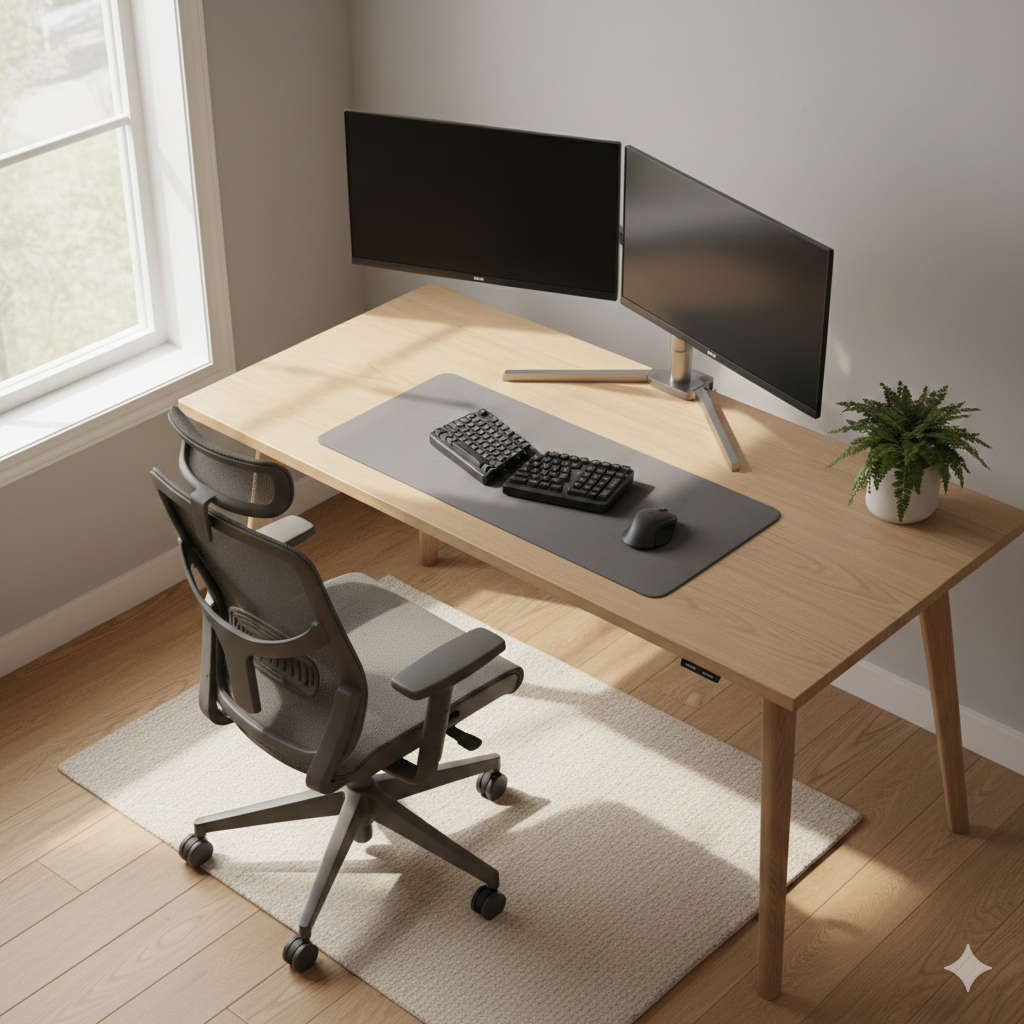
The shift to remote work has brought flexibility and freedom, but it’s also introduced an unexpected challenge: physical discomfort. If you’ve ever ended your workday with a stiff neck, aching shoulders, or lower back pain, you’re experiencing the consequences of a poorly designed workspace.
Here’s the thing—your body wasn’t built to sit hunched over a laptop at your kitchen table for eight hours straight. But with the right ergonomic setup, you can work comfortably, protect your health, and actually boost your focus and energy levels throughout the day.
Let me walk you through exactly how to create a workspace that works with your body, not against it.
Understanding Why Your Current Setup Might Be Hurting You
Think about how you’re sitting right now. Are your shoulders creeping up toward your ears? Is your head jutting forward to see your screen? Are you perched on the edge of your seat because the back of your chair doesn’t support you?
These seemingly small misalignments compound over time. What starts as mild discomfort can evolve into chronic pain, repetitive strain injuries, and long-term health issues. Beyond the physical toll, there’s also the productivity cost—it’s hard to concentrate when your body is screaming for relief.
The solution isn’t to power through the discomfort. It’s to redesign your workspace so your body can relax into a natural, supported position.
Starting with Your Chair: The Cornerstone of Comfort
Your chair deserves serious attention because it’s quite literally supporting you through every work hour. Whether you have a fancy ergonomic chair or a basic dining room seat, proper adjustment makes all the difference.
Getting the Height Right
Plant your feet firmly on the floor. Your knees should bend at roughly a right angle, with your thighs running parallel to the ground. There’s a sweet spot here—too high and your feet dangle, putting pressure on the backs of your thighs; too low and you’re putting excess strain on your hips and knees.
Can’t reach the floor even with your chair at its lowest setting? That’s where a footrest comes in handy. Even a sturdy cardboard box or stack of books works in a pinch.
Supporting Your Lower Back
Your spine has a natural S-curve, and your chair needs to honor that. The small of your back should nestle into support that maintains this curve rather than allowing your lower back to round out.
If your chair has built-in lumbar support, adjust it until it fits snugly into your lower back curve. No lumbar support? Roll up a small towel and tuck it behind your lower back. This simple trick can eliminate that end-of-day backache.
Positioning Your Armrests
Armrests are helpful when adjusted correctly, but problematic when they’re not. Your shoulders should stay relaxed and dropped, not hunched up. When your arms rest lightly on the armrests, your elbows should form that magic right angle again.
Here’s a key point many people miss: while typing, your forearms should hover just above the armrests, not press down on them. Heavy pressure on your forearms can lead to nerve compression and discomfort.
Seat Depth Matters Too
Slide all the way back into your chair. There should be a small gap—about the width of three fingers—between the front edge of the seat and the back of your knees. This space prevents circulation issues and allows you to use that lumbar support properly.
Perfecting Your Desk Configuration
Once your chair is dialed in, turn your attention to your desk and everything on it.
Finding Your Ideal Desk Height
Stand beside your desk and let your arms hang naturally. Bend your elbows at a right angle. Your forearms should be roughly level with your desk surface. This position allows your wrists to stay straight while typing—crucial for preventing repetitive strain.
Most standard desks sit around 29 to 30 inches high, which suits people of average height. Taller or shorter? You might need to get creative with desk risers or keyboard trays.
Keyboard and Mouse Arrangement
Your keyboard should sit directly in front of you, close enough that you’re not reaching forward. When you type, your wrists should float in a neutral position—imagine a straight line from your elbow through your wrist to your knuckles.
Place your mouse right beside your keyboard at the same height. If you’re constantly stretching to reach it, you’re setting yourself up for shoulder tension. Your mouse hand should move from the elbow, not the shoulder.
Many people benefit from keyboard trays that tuck under the desk. These allow proper wrist height even if your desk sits too high for comfortable typing.
Monitor Positioning: The Game-Changer
This is where most home workers get it wrong, and it’s causing widespread neck pain. Your monitor needs to be at arm’s length—far enough that you’re not squinting, close enough that you’re not leaning forward.
The top edge of your screen should align with or sit slightly below your eye level. When you look straight ahead, your gaze should land on the address bar of your browser, not the middle of the screen. This slight downward angle is natural and comfortable for your eyes and neck.
Using a laptop as your primary display? That tiny screen forces you into neck-straining positions. Get a laptop stand to raise the screen, then add an external keyboard and mouse. Your neck will thank you immediately.
Dual Monitor Strategy
If you run two monitors, place your primary screen directly in front of you. The secondary monitor should angle slightly to your dominant side. Switch which monitor you consider “primary” based on which one you look at most throughout your day.
Using both monitors equally? Center them so the bezels meet right in front of you. You’ll turn your head slightly to each side, which is healthier than keeping one monitor as “main” while constantly craning your neck toward the other.
Optimizing Your Physical Environment
Ergonomics extends beyond furniture and equipment—your entire environment affects your comfort and wellbeing.
Lighting That Works For You
Harsh overhead lights and screen glare cause squinting, eye strain, and headaches. Position your desk perpendicular to windows rather than facing them directly or sitting with them behind you. This minimizes glare while still giving you natural light.
Add a desk lamp for task lighting. Look for lamps with adjustable arms and warm LED bulbs that you can dim or brighten based on the time of day and your tasks.
Your screen brightness should match your environment. Working in a bright room? Increase screen brightness. Dimmer space? Tone it down. Your eyes shouldn’t have to constantly adjust between dramatically different light levels.
Screen Display Settings
Increase your default text size if you’re leaning forward to read. There’s no prize for using tiny fonts. Most operating systems let you scale everything up by 125% or 150% without distorting your display.
Enable night mode or blue light filters in the evening. These warmer color temperatures reduce eye strain during late work sessions and help protect your natural sleep patterns.
Temperature and Air Quality
You can’t focus when you’re too hot or too cold. Most people work best in the 68 to 76 degree range, but you know your own preferences. Position a small fan or space heater to create your ideal microclimate.
Fresh air matters more than you might think. Open a window when possible, and consider adding a desk plant. Plants improve air quality while making your space more inviting. If you’re in a dry climate or running heat during winter, a small humidifier prevents that scratchy throat and dry skin.
Smart Accessory Investments
You don’t need every gadget, but certain tools can dramatically improve your comfort.
Monitor Arms and Stands
A monitor arm gives you infinite adjustability—height, distance, angle, rotation. These clamp onto your desk and free up valuable surface space while letting you position your screen perfectly.
Budget-friendly alternative? Stack sturdy books under your monitor. Measure first so you’re building up to the right height.
Ergonomic Input Devices
Standard keyboards and mice force your hands and wrists into unnatural positions. Ergonomic keyboards split in the middle, letting your hands rest at shoulder width. Some even tent upward in the middle, reducing wrist rotation.
Vertical mice keep your hand in a handshake position rather than flattened, which many people find more comfortable for extended use. These accessories feel awkward at first but become natural within a few days.
Document Holders
Constantly looking down at papers beside your keyboard while typing? That’s repetitive neck strain in action. A document holder positioned between your keyboard and monitor, or beside your monitor at screen height, keeps reference materials at eye level.
Footrests for Proper Support
Can’t touch the floor with your feet flat? A footrest maintains proper leg position and circulation. Adjustable ones let you change the angle and height throughout the day.
Standing Desk Options
Alternating between sitting and standing throughout your workday reduces the health risks of prolonged sitting. Full standing desks are wonderful but expensive. Desktop converters that sit on your existing desk provide the same benefits at a fraction of the cost.
Start with 15 to 20 minutes of standing at a time, gradually increasing as your body adapts. Standing all day isn’t the goal—variation is.
Movement and Rest: The Missing Piece
Even a perfectly ergonomic setup can’t overcome hours of motionless sitting. Your body craves movement.
The Simple Eye Relief Technique
Every 20 minutes, pause your screen work for 20 seconds and look at something at least 20 feet away. This gives your eye muscles a chance to relax from their constant near-focus position. Set a timer on your phone until this becomes habit.
Regular Movement Breaks
Stand up and move every 30 to 60 minutes. Walk to get water, do some stretches, or just pace around. These breaks improve circulation, reduce muscle tension, and actually boost your mental clarity and creativity.
Simple desk stretches make a big difference: roll your shoulders backward in large circles, tilt your head gently from side to side, clasp your hands and push them forward to stretch your arms and upper back, and stand up and reach toward the ceiling.
Creating Your Setup on Any Budget
Quality ergonomics don’t require a massive investment. Start where you are with what you have.
Prioritize Based on Pain Points
What bothers you most? Start there. If it’s your lower back, focus on chair support. Neck pain? Fix your monitor height first. Target your biggest discomfort and build from there.
Creative Solutions Using Household Items
Stack textbooks or storage boxes to raise your monitor. Roll a towel for lumbar support. Use a sturdy shoebox as a footrest. A cutting board propped on books creates an impromptu standing desk converter.
These aren’t permanent solutions, but they work while you save for or source better equipment.
Secondhand Office Furniture
Check online marketplaces and local office furniture liquidators. Companies regularly sell quality chairs and desks at deep discounts. A used Herman Miller chair at half price beats a new cheap chair every time.
Incremental Improvements
You don’t need to overhaul everything at once. Make one improvement each month. This spreads the cost and lets you evaluate what really makes a difference for your specific needs.
Personalizing Your Perfect Setup
Everyone’s body is different. What feels perfect for your colleague might not work for you, and that’s completely normal.
Pay Attention to Your Body’s Signals
Notice when discomfort appears. Is it after an hour? Two hours? Does it start in a specific spot? These clues tell you where your setup needs adjustment.
Tingling, numbness, or sharp pain are red flags. Don’t push through—these symptoms signal nerve compression or repetitive strain that needs immediate attention.
Take Setup Photos
Have someone photograph you at your workstation from the side and front. Look for:
- Is your head forward from your shoulders?
- Are your shoulders rounded or hunched?
- Do your wrists bend up or down while typing?
- Are you sitting on the front half of your seat?
These photos reveal postural issues you can’t feel or notice while working.
Experiment and Adjust
Give changes a few days before deciding they don’t work. Your body needs time to adapt to new positions. What feels weird on day one might feel perfect by day three.
Don’t hesitate to tweak settings throughout the day. Your morning setup might need slight adjustments by afternoon as your body tires.
Building Sustainable Healthy Habits
Your ergonomic setup only works if you use it correctly and consistently.
Sitting Properly
Actually use that lumbar support by sitting all the way back in your chair. Many people perch on the front edge, negating all the chair’s ergonomic features.
Keep frequently used items within easy reach. Repetitive twisting and stretching for your phone, notebook, or coffee defeats the purpose of your careful setup.
Maintaining Good Posture
Think of a string gently pulling the crown of your head toward the ceiling. This mental image naturally aligns your spine without forcing a rigid military posture.
Let your shoulders drop and relax. Tension creeps in when we concentrate, causing shoulders to migrate toward our ears. Regular awareness checks help you release this tension.
Staying Hydrated
Keep water at your desk and drink regularly. Hydration helps prevent muscle cramps and joint stiffness. Plus, regular water breaks naturally prompt those movement breaks your body needs.
Why This Investment Pays Off
Spending money and time on your workspace might seem unnecessary—until you calculate the alternative.
Medical treatment for repetitive strain injuries, chronic back pain, or neck problems costs far more than an ergonomic chair. Missing work due to pain costs even more.
Beyond avoiding injury, there’s the positive side: when you’re comfortable, you think more clearly, concentrate more deeply, and sustain focus longer. Your energy lasts through the afternoon instead of crashing after lunch. You finish work days without that bone-deep exhaustion that comes from fighting your workspace.
Your home office is where you spend a massive portion of your life. Making it a place that supports your health and comfort isn’t optional—it’s essential.
Taking Action Today
Improving your workspace doesn’t require a complete transformation tomorrow. Start small and build momentum.
Pick one change to implement today. Raise your monitor using books. Add a rolled towel behind your lower back. Set a timer for movement breaks. Take a photo to assess your posture.
One small improvement creates motivation for the next. Within a few weeks, you’ll have transformed your workspace from a source of pain into a foundation for productive, comfortable work.
Your body is your most important work tool. Treat it with the care and respect it deserves, and it will support your work for decades to come. The perfect ergonomic setup isn’t about following rigid rules—it’s about creating a space where your body can relax, your mind can focus, and you can do your best work without sacrificing your health.
Start now. Your future self will thank you.