
Remote work has transformed how people approach their careers. What started as a flexible alternative has now become a long-term lifestyle for millions of professionals around the world. While working from home offers comfort and freedom, it also introduces a serious challenge that many people underestimate: poor ergonomics.
Dining tables become desks. Sofas turn into workstations. Laptops sit too low. Chairs lack support. Over time, these small compromises lead to neck pain, back stiffness, wrist discomfort, eye strain, and constant fatigue. The problem isn’t working from home—it’s working from home without an ergonomic setup.
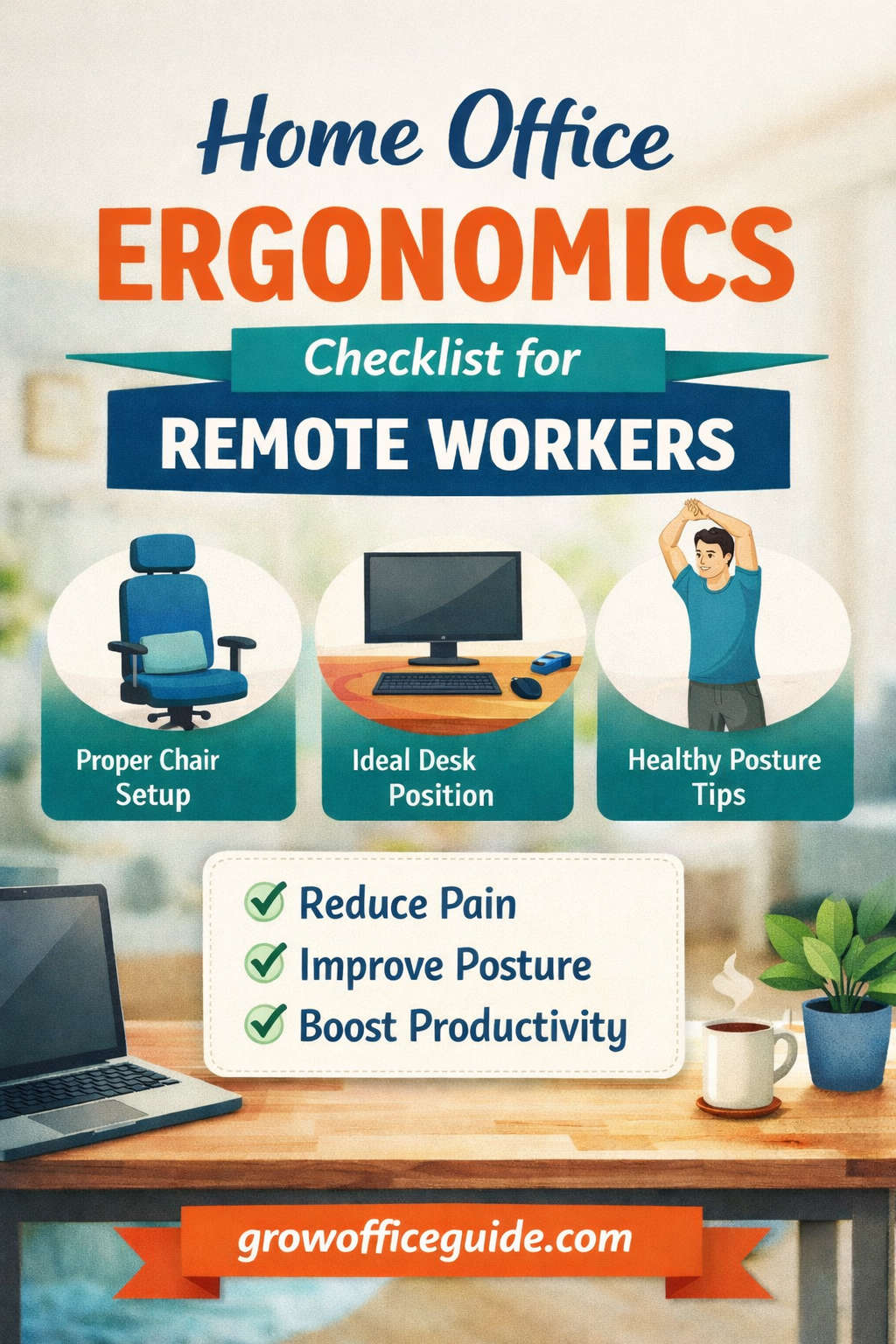
This detailed home office ergonomics checklist for remote workers is designed to help you create a workspace that supports your body, protects your health, and improves your productivity. Whether you work full-time from home or just a few days a week, these guidelines will help you work comfortably for years to come.
Why Ergonomics Is Essential for Remote Workers
In traditional office environments, ergonomics is often built into the space. Chairs are adjustable, desks are standardized, and monitors are positioned with health guidelines in mind. At home, you don’t get that automatic support.
Remote workers are more likely to:
- Sit for longer periods without breaks
- Work in non-adjustable seating
- Use laptops without external accessories
- Ignore posture until pain appears
Poor ergonomics doesn’t just cause discomfort. Over time, it can lead to chronic musculoskeletal problems, repetitive strain injuries, reduced circulation, headaches, and decreased focus. Once these issues develop, they can affect both your work performance and your overall quality of life.
A properly designed ergonomic workspace reduces physical stress, improves energy levels, and allows you to stay productive without sacrificing your health.
Understanding the Basics of Ergonomic Design
Before diving into the checklist, it’s important to understand what ergonomics actually means.
Ergonomics is the science of designing a workspace around the human body. The goal is to support natural movement, reduce strain, and prevent injury. A good ergonomic setup promotes neutral posture, balanced muscle use, and regular movement.
Key ergonomic principles include:
- Keeping joints in natural alignment
- Avoiding prolonged static positions
- Reducing repetitive motions
- Supporting the spine’s natural curves
- Designing the workspace to fit the person, not the task
With these principles in mind, let’s walk through a complete ergonomic checklist you can apply to any home office.
Chair Ergonomics: The Backbone of Comfort
Your chair plays the most important role in your home office setup. If your chair doesn’t support your body properly, no desk or monitor adjustment can compensate.
A good ergonomic chair supports your spine, allows your feet to rest comfortably, and keeps your posture stable throughout the day.
Chair Setup Checklist
- Feet rest flat on the floor or on a footrest
- Knees are level with or slightly lower than hips
- Lower back is supported by lumbar padding
- Backrest follows the natural curve of the spine
- Seat depth allows 2–3 fingers of space behind the knees
- Armrests support forearms without lifting shoulders
If you don’t own an ergonomic chair, you can still improve your setup:
- Use a firm cushion or rolled towel for lumbar support
- Adjust seat height with pillows if necessary
- Avoid soft couches or stools for long work sessions
A supportive chair reduces lower back pressure and encourages better posture throughout the day.
Desk Height and Work Surface Alignment
Desk height directly affects your shoulders, arms, and wrists. A desk that is too high causes shoulder tension, while a desk that is too low forces you to hunch forward.
Desk Ergonomics Checklist
- Elbows rest at approximately a 90-degree angle
- Forearms remain parallel to the floor
- Shoulders stay relaxed while typing
- Wrists are not bent upward or downward
- Desk surface allows enough space for keyboard and mouse
If your desk height isn’t adjustable:
- Raise your chair and use a footrest if the desk is too high
- Elevate the desk using sturdy risers if it’s too low
Proper desk height reduces upper body tension and improves typing comfort.
Monitor Positioning and Screen Height
Incorrect monitor placement is one of the most common ergonomic mistakes among remote workers. Looking down at a screen for hours places strain on the neck and upper spine.
Monitor Ergonomics Checklist
- Top of the screen is at or slightly below eye level
- Screen is positioned about an arm’s length away
- Monitor is centered directly in front of you
- Dual monitors are aligned evenly or one is centered
- Laptop users use a stand or external monitor
If you work on a laptop full-time:
- Raise the laptop using a stand or books
- Connect an external keyboard and mouse
- Avoid bending your neck forward to view the screen
Proper monitor height helps maintain a neutral neck position and reduces fatigue.
Keyboard and Mouse Placement
Your hands and wrists are vulnerable to repetitive strain injuries if they are not positioned correctly.
Keyboard and Mouse Checklist
- Keyboard is placed directly in front of you
- Wrists remain straight while typing
- Mouse is positioned close to the keyboard
- Elbows stay close to your sides
- Hands move lightly rather than forcefully
Helpful habits include:
- Using keyboard shortcuts to reduce mouse use
- Switching mouse hands occasionally
- Taking short breaks to stretch wrists and fingers
Neutral wrist positioning reduces the risk of long-term strain and discomfort.
Maintaining Healthy Sitting Posture
Even the most ergonomic equipment won’t help if posture is ignored. Good posture should feel natural, not forced.
Ideal Sitting Posture Checklist
- Head balanced directly over shoulders
- Shoulders relaxed, not rounded forward
- Lower back supported against the chair
- Elbows close to the body
- Hips positioned fully back in the seat
Avoid these common posture mistakes:
- Leaning forward toward the screen
- Sitting on the edge of the chair
- Crossing legs for extended periods
- Slouching or collapsing the chest
Posture awareness improves circulation, breathing, and focus.
Lighting and Visual Comfort
Poor lighting leads to eye strain, headaches, and reduced concentration. Your workspace should be bright but not harsh.
Lighting Checklist
- Workspace is evenly lit
- Light sources are placed to the side, not directly behind the screen
- No glare or reflections on the monitor
- Monitor brightness matches room lighting
- Adjustable desk lamp available for focused tasks
To protect your eyes:
- Follow the 20-20-20 rule
- Increase text size instead of leaning forward
- Blink frequently to avoid dryness
Visual comfort directly affects mental clarity and productivity.
Noise Control and Acoustic Ergonomics
Sound plays a major role in stress levels and focus, especially in shared living spaces.
Acoustic Comfort Checklist
- Workspace is free from constant background noise
- Headphones or noise-canceling options are available
- Soft furnishings help absorb sound
- Microphone placement prevents awkward postures during calls
Reducing noise distractions improves concentration and reduces mental fatigue.
Temperature, Airflow, and Environmental Comfort
Physical comfort isn’t limited to posture. Temperature and air quality affect focus, energy, and well-being.
Environmental Comfort Checklist
- Room temperature remains comfortable throughout the day
- No direct hot or cold air blowing on your body
- Adequate ventilation or airflow
- Humidity is balanced, not overly dry
Small improvements like opening windows or adding plants can make a noticeable difference.
Movement, Breaks, and Daily Activity
One of the biggest ergonomic mistakes remote workers make is staying still for too long. Even perfect posture becomes harmful when held for hours.
Movement Checklist
- Stand up every 30–60 minutes
- Stretch neck, shoulders, and hips regularly
- Walk during phone calls when possible
- Alternate between sitting and standing
- Schedule movement reminders
Simple stretches include:
- Neck rotations
- Shoulder rolls
- Wrist circles
- Hip flexor stretches
- Standing back extensions
Movement keeps joints healthy and reduces stiffness.
Sit-Stand Workstations and Flexible Setups
Sit-stand desks are increasingly popular for good reason. They allow posture variation and reduce prolonged sitting.
Sit-Stand Ergonomics Checklist
- Desk height adjusted correctly for sitting and standing
- Monitor remains at eye level in both positions
- Anti-fatigue mat used when standing
- Supportive footwear or barefoot mat
- Sitting and standing alternated throughout the day
Standing all day is not better than sitting all day. Balance is key.
Workspace Organization and Reach Zones
How your workspace is organized affects both posture and efficiency.
Organization Checklist
- Frequently used items within arm’s reach
- Minimal twisting or stretching required
- Desk surface remains clutter-free
- Storage positioned logically
A clean workspace reduces physical strain and mental distraction.
Mental Ergonomics and Work-Life Balance
Ergonomics isn’t just physical—it’s psychological.
Mental Ergonomics Checklist
- Dedicated workspace separate from relaxation areas
- Clear start and end times to the workday
- Visual environment feels calm and motivating
- Personal touches that improve mood
Mental comfort supports focus, creativity, and long-term motivation.
Common Home Office Ergonomic Mistakes
Many remote workers unknowingly sabotage their comfort by:
- Working from beds or sofas
- Ignoring foot support
- Looking down at screens
- Skipping breaks
- Accepting discomfort as normal
Pain is not part of productivity. It’s a signal that something needs adjustment.
Budget-Friendly Ergonomic Improvements
You don’t need expensive equipment to improve ergonomics.
Affordable solutions include:
- Rolled towels for lumbar support
- Books to raise monitors
- Boxes used as footrests
- External keyboard and mouse
- Timers for movement reminders
Small adjustments can lead to major improvements.
Final Thoughts: Build a Workspace That Supports You
Your home office should help you work better—not hurt you over time. A thoughtful ergonomic setup protects your body, improves focus, and makes remote work sustainable.
Use this home office ergonomics checklist for remote workers as a reference whenever your workspace changes or discomfort appears. Ergonomics isn’t a one-time fix—it’s an ongoing process.
When your body feels supported, your work naturally improves.